

Help Pages
InClover Classic Page Help Section
DRF Upload
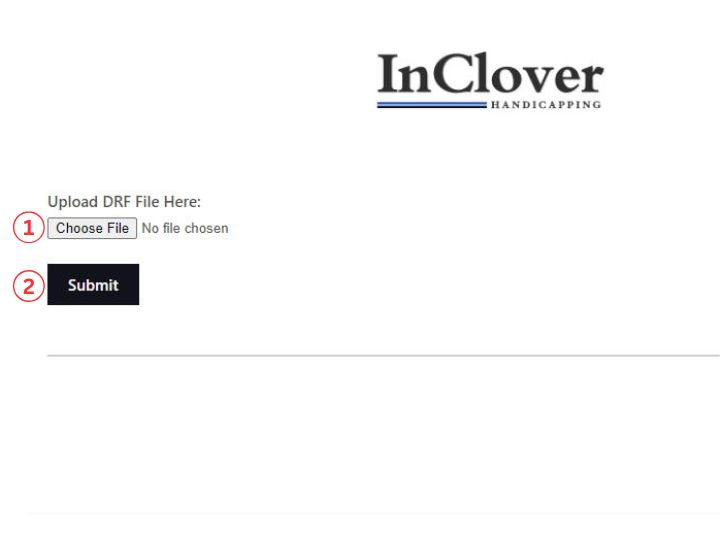
- Choose File Button: Click this button, navigate to your .DRF file, and select it. File must end in “.DRF”.
- Submit Button: Once you have selected the DRF file you would like to use, hit the submit button. The InClover horse racing data analysis tool currently only works with Brisnet PP single file format; using a different format or type of race data will result in errors.
Race Section and Information
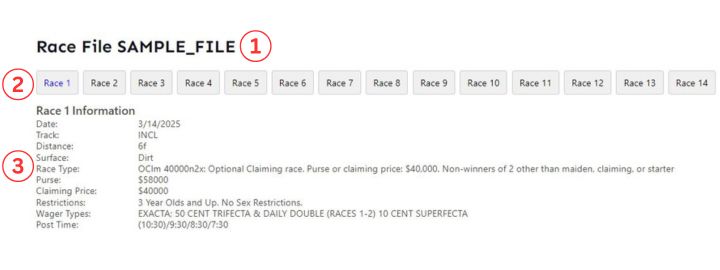
- Race File Name: File name of the DRF file.
- Race Section Buttons: Use these buttons to switch between races. Any changes made to a race, such as scratching horses, will stay there until you load a new DRF file or reload the page.
- Race Information: Key information about the current race.
- Date: Date of the race
- Track: Track code for the track where the race will be held.
- Distance: Distance of the race in furlongs/miles.
- Surface: The surface the race will be held on.
- Race Type: Race class code followed by a breakdown of what the class code means.
- Purse: Total prize money offered for the race.
- Claiming Price: Claiming price for the race, if applicable. A claiming price is the set amount to buy a horse in a claiming race. This will be left blank if race is not a claiming race.
- Restrictions: Horse age and sex restrictions for the race.
- Wager Types: Types of wagers for this race.
- Post Time: Scheduled start time for the race. Formatted Eastern/Central/Mountain/Pacific timezone. Parentheses indicate the timezone where the race is taking place.
Paceline Filter Settings Bar

- Apply Settings Button: Applies the current paceline filter settings to the data table. If you changed a setting since the last time the table was updated with a filter, the text for that setting will turn red.
- Distance Settings Dropdown: Filters the data table’s pacelines by distance.
- All Distance: Includes all distances.
- Today’s Category Only: Includes only pacelines that share the same category as today’s race (Sprint/Route).
- Today’s Distance Only: Includes only pacelines that are the same distance as today’s race.
- Within 1 Furlong of Today’s Distance: Includes only pacelines that are within 1 furlong of today’s distance.
- Within 2 Furlongs of Today’s Distance: Includes only pacelines that are within 2 furlongs of today’s distance.
- Within 3 Furlongs of Today’s Distance: Includes only pacelines that are within 3 furlongs of today’s distance.
- Surface Settings Dropdown: Filters the data table’s pacelines by surface.
- All Surfaces: Includes all surfaces.
- Today’s Surface: Includes only pacelines that share the same surface as today’s race.
- Track Settings Dropdown: Filters the data table’s pacelines by track.
- All Tracks: Includes all tracks.
- Today’s Surface: Includes only pacelines that share the same track as today’s race.
- Paceline Settings Dropdown: Filters by the most recent pacelines.
- All Pacelines: Includes the last ten pacelines.
- Latest Paceline: Includes only the latest paceline for each horse.
- Last 2 Pacelines: Includes only the last 2 pacelines for each horse.
- Last 3 Pacelines: Includes only the last 3 pacelines for each horse.
- Last 4 Pacelines: Includes only the last 4 pacelines for each horse.
- Last 5 Pacelines: Includes only the last 5 pacelines for each horse.
- Last 6 Pacelines: Includes only the last 6 pacelines for each horse.
- Last 7 Pacelines: Includes only the last 7 pacelines for each horse.
- Last 8 Pacelines: Includes only the last 8 pacelines for each horse.
- Last 9 Pacelines: Includes only the last 9 pacelines for each horse.
Horse Data Table
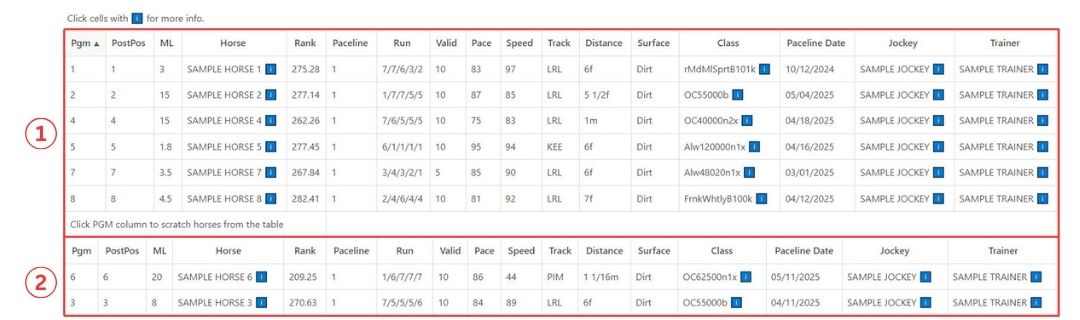
- Valid Horses Section: This section contains all of the horses that have not been scratched. To scratch a horse, simply click the Pgm cell for that horse.
- Scratched Horses Section: This section contains all the horses you have scratched from the race. To unscratch a horse, simply click the Pgm cell for that horse.
What Do The Data Table Headers Mean?
- Pgm: Horse’s program number for the race.
- PostPos: Horse’s post position for the race. This refers to the number of the starting gate stall.
- ML: Horse’s morning line odds for the race. The morning line odds are the initial odds set by the track’s oddsmaker before betting begins on the race.
- Horse: Horse’s name. Click this cell to open a pop-up box containing additional stats and information about the horse.
- Rank: InClover’s speed ranking for the filtered pacelines.
- Paceline: Which of the last ten pacelines is being shown in the table. 1 being the most recent paceline. 10 being the oldest paceline.
- Run: For the most recent valid paceline: Post Position/Start Call Position/2nd Call Position/Stretch Position/Finish Position.
- Valid: How many of the horses last ten races are being included by the paceline filter settings. Most notably, this is the sample size for the horse’s InClover speed ranking.
- Pace: Bris E1 pace figure for the most recent valid paceline.
- Speed: Bris Speed Rating for the most recent paceline. If no Bris speed rating is available, DRF speed rating will be used instead.
- Track: Track code for the track where the most recent valid paceline was held.
- Distance: Distance of the most recent valid paceline in furlongs/miles.
- Surface: The surface of the most recent valid paceline.
- Class: Race class code for the most recent valid paceline. Click this cell for a detailed breakdown of the race class code’s meaning.
- Paceline Date: Date of the most recent valid paceline.
- Jockey: The horse’s jockey for today’s race. Click this cell to open a pop-up box containing the jockey’s stats.
- Trainer: The horse’s trainer for today’s race. Click this cell to open a pop-up box containing the trainer’s stats.
Reports and Our Contenders Buttons

- Report Selection Dropdown: This dropdown menu is used to select which report you want to open.
- Indepth Report: A detailed report for each horse in the race. Great for a zoomed-out overview.
- Surface Report: This report allows you to easily compare the stats for each horse on dirt, mud, and turf.
- Pars Report: This report contains averaged pars for recent races based on distance and category, so you can easily compare horses. It also contains all the pars for each horse’s last ten races.
- Jockey Report: This report allows you to easily compare each horse’s jockey’s stats for the current meet, current year, and previous year.
- Trainer Report: This report allows you to easily compare each horse’s trainer’s stats for the current meet, current year, and previous year.
- Key Trainer Stats Report: A detailed breakdown of each horse’s key trainer stat categories. Also contains comparison tables for any horses sharing the same key trainer stat category, so you can compare them head to head.
- Workout Report: A detailed report containing each horse’s last twelve workouts.
- Open Report Button: Click this to open the currently selected report in a new tab.
- Printable Page Button: Click this to open a new tab containing a more printer-friendly version of the data table above. Great for creating a PDF version of the table using print to PDF.
- Our Contenders Button: Click this button to toggle visibility of InClover’s Horse Contenders table.
Our Contenders Table
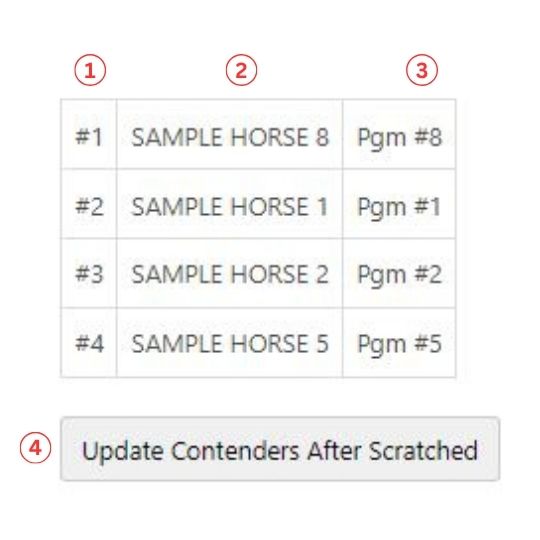
- Contender Rank: What position our proprietary algorithm thinks the horse will finish in. This is a great starting point for analysis.
- Horse Name: Contender’s name.
- Program Number: Contender’s program number.
- Update Contenders Button: If the text in the button is red, click it to update the contenders table to account for scratched or unscratched horses.